
Guide · Updated 9 October 2026
How to draw on your Mac screen with an iPad or iPhone
A Mac screen isn’t a touchscreen, so the pen has to live on another device. Here are the ways to do it, what each one is good at, and where PadCanvas fits.
Quick answer
To draw over anything on your Mac screen, such as slides, a website or a video call, use a companion app. With PadCanvas, open the app on your Mac, open the companion on your iPhone or iPad, connect over USB, Wi‑Fi or Bluetooth, approve the device on the Mac, and draw with your finger or an Apple Pencil. To draw inside a single Mac app instead, Apple’s Sidecar can turn an iPad into a second display that accepts Apple Pencil input.
Your options at a glance
| Option | What it does | Best for | Limits |
|---|---|---|---|
| Sidecar (built into macOS) | Extends or mirrors your Mac display on an iPad. Apple Pencil can point, click and draw in apps that support it. | Drawing or editing inside one Mac app. | iPad only. It doesn’t add a drawing layer over other apps, and both devices need the same Apple Account. |
| Continuity Sketch (built in) | Draw a sketch on an iPhone or iPad and insert it into a Mac document. | Adding a diagram to Pages, Keynote, Mail or Notes. | Not live. The sketch lands in the document when you finish it. |
| Keynote Remote drawing (built in) | Draw on slides from an iPhone or iPad while a Keynote slideshow plays on the Mac. | Keynote presentations. | Keynote only. |
| A Mac annotation app, used through Sidecar | Annotation apps draw over the whole Mac screen. Some suggest pairing an iPad through Sidecar or a display app so you can draw with the Pencil. | People who already own one of those apps. | The iPad becomes a mirrored display, with the same Sidecar requirements. |
| A companion app such as PadCanvas | Your iPhone or iPad becomes the pen and remote for an overlay on the Mac screen. | Presenting, teaching, calls, reviews: drawing over any app. | Needs the Mac app and the companion. |
Dedicated companions also exist from other developers. Screen Annotator, for example, pairs its Mac utility with an iPad app, and ScreenBrush Remote is an iPhone remote for the ScreenBrush Mac app. Check their App Store listings for current devices and pricing.
Set up PadCanvas in five steps
- Download PadCanvas for Mac, open it and start your free week from Account.
- Choose the display you want to draw on: the built-in screen or an external monitor.
- Open the companion on your iPhone or iPad and pick a connection: USB for the most reliable link, Wi‑Fi on the same trusted network, or Bluetooth for drawing and controls.
- Approve the named device on your Mac. Nothing draws until you do.
- Draw with your finger or Apple Pencil. The mark appears in the same place on the Mac.
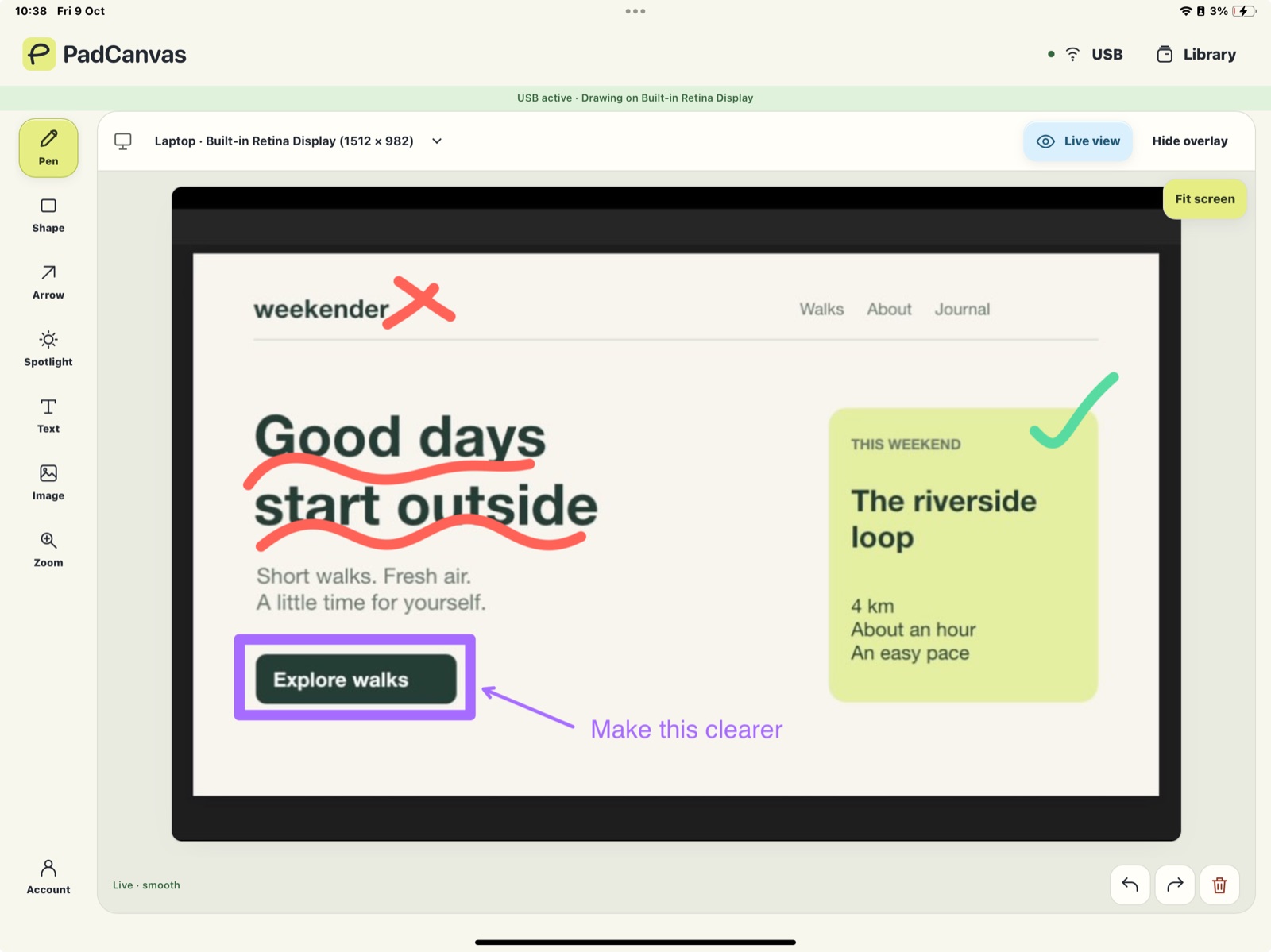
Turn on live view over USB or Wi‑Fi to see your Mac screen on the device while you draw. That needs Screen Recording permission on the Mac. Bluetooth carries drawing and controls, but not live view. The setup guide covers each connection step by step.
Drawing from an iPhone
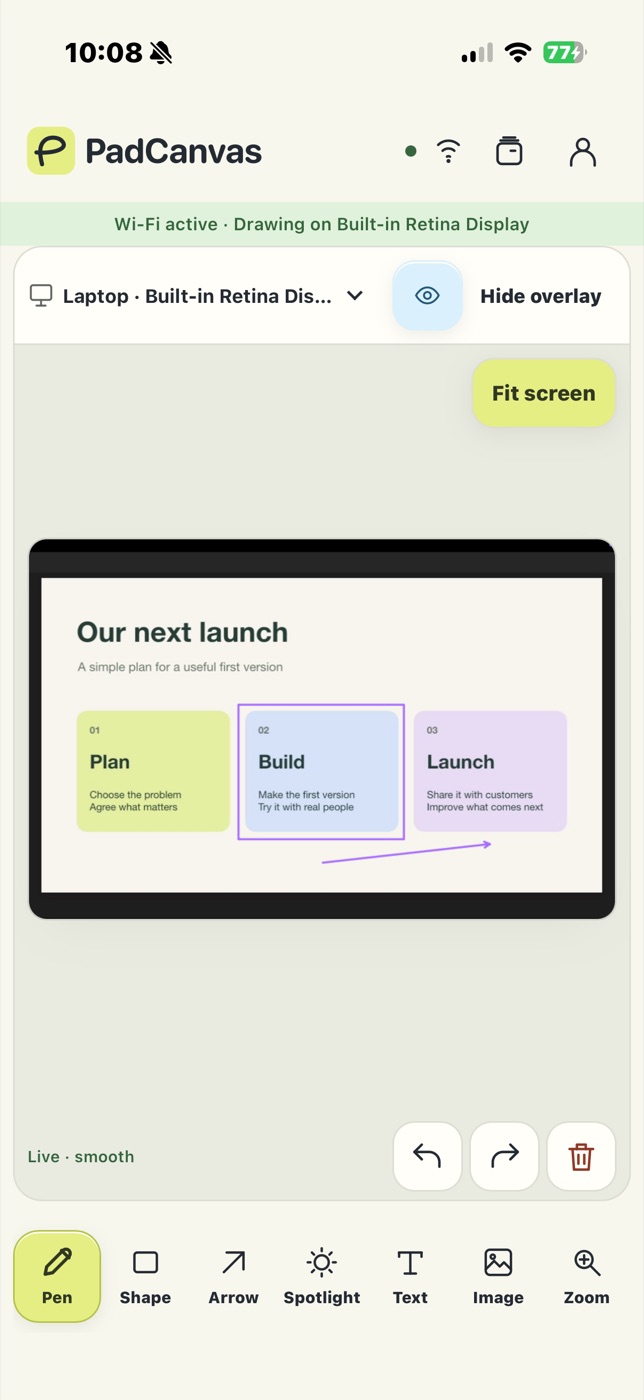
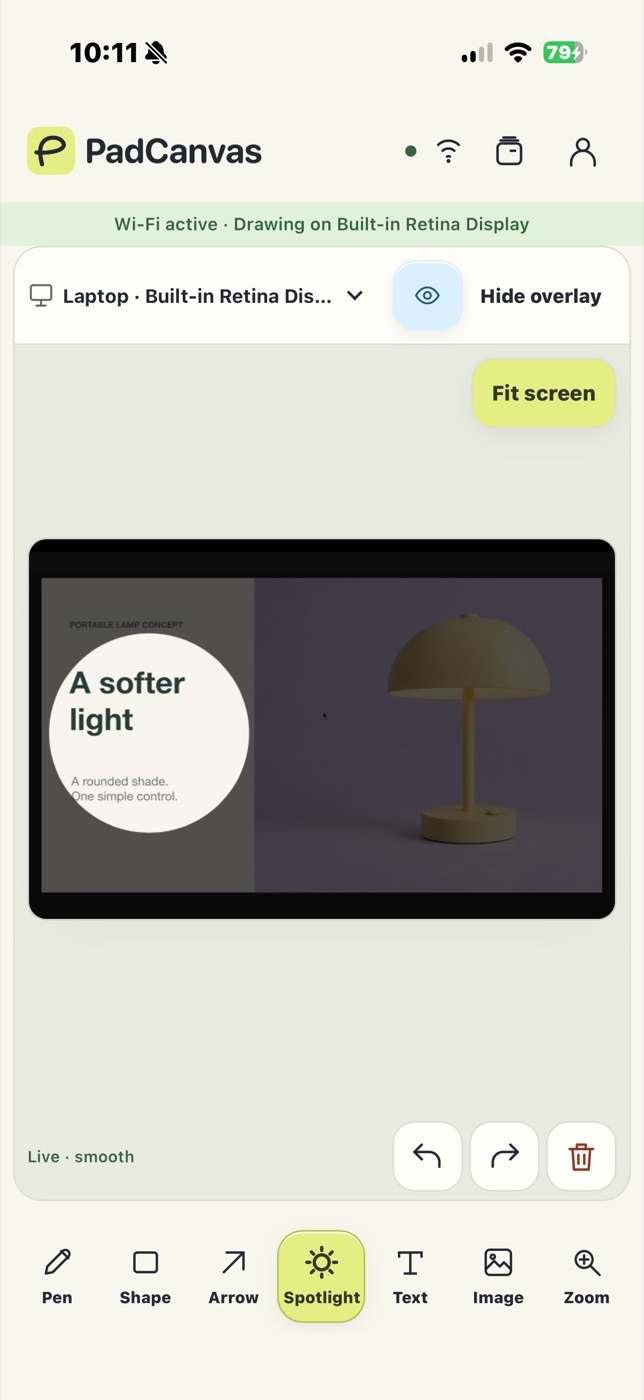
The iPhone companion has the same tools as the iPad: pen, shapes, arrows, text, images, spotlight and zoom. Pinch to zoom into the part of the screen you’re marking up, and use Fit screen to go back.
Using an Apple Pencil
On a compatible iPad, Apple Pencil draws with the precision you’d expect from a notes app. Turn on smooth freehand in the Pen settings for steadier lines. Apple Pencil can’t connect to a Mac directly; see Can you use an Apple Pencil on a Mac?
Who sees your drawing?
Anyone who can see the Mac’s selected display: the room, a projector, or a video call. In Zoom, Google Meet or Teams, share the entire display you chose in PadCanvas. Sharing one window or a browser tab may leave the drawing out. Make a test mark before you present. The video calls guide walks through each app.
Questions
Can I draw on my Mac screen with an iPad?
Yes. Sidecar lets an iPad act as a Mac display for drawing inside apps. To draw over everything on the screen, use a companion app such as PadCanvas, which connects your iPad to the Mac over USB, Wi‑Fi or Bluetooth.
Can I use an iPhone instead of an iPad?
Yes. PadCanvas works with iPhone as well as iPad. You draw with your finger, and the marks appear on the Mac.
Do the devices need to be on the same Wi‑Fi?
Only for Wi‑Fi. USB works with a cable, and Bluetooth works without a shared network. Guest and workplace networks sometimes stop devices reaching each other; USB avoids that.
Is my screen sent to the internet?
No. Drawing and live view travel directly between your approved device and your Mac. They aren’t relayed through the PadCanvas account service. Sign-in and access checks need the internet.
Try it on your own screen
Seven days free, then £4.99 a year. The iPhone & iPad companion is included.
Requires an Apple-silicon Mac with macOS 14 or later, and an iPhone or iPad with iOS or iPadOS 16 or later. Apple Pencil works on compatible iPads.