
For teachers · Updated 9 October 2026
Annotate your Mac from an iPad, anywhere in the room
Put the Mac on the projector, pick up your iPad, and mark up the lesson while you walk the room. Students can add their own marks, with your approval.
Quick answer
PadCanvas turns an iPad or iPhone into a wireless pen for the Mac connected to your projector or board. Connect over USB, Wi‑Fi or Bluetooth, approve your device, and draw over anything on screen: slides, worksheets, websites or video. Students can join from Chrome or Edge on the same network by entering a display name. You approve each one, and you can remove access at any time.
A classroom setup that just works
- Connect the Mac to the projector or display and choose that screen in PadCanvas.
- Connect your iPad or iPhone. USB is the most dependable option; Wi‑Fi gives you the room to walk.
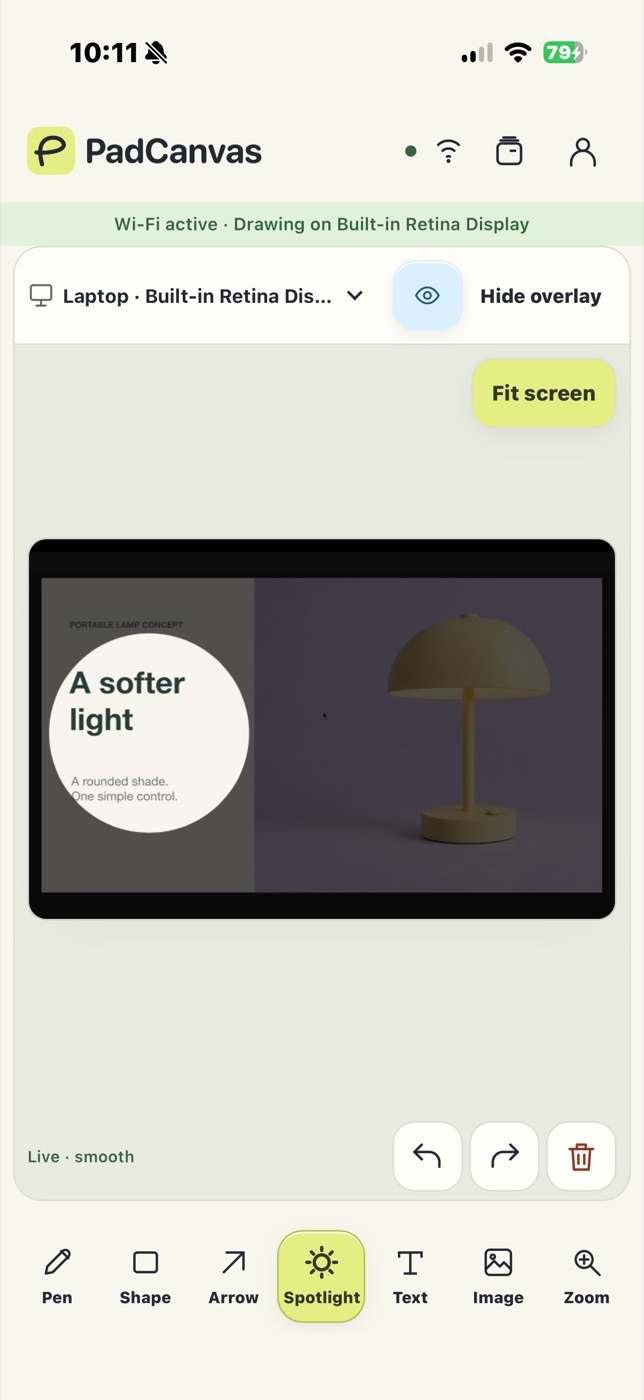
- Teach as usual. Underline, circle, spotlight a paragraph or zoom into a diagram.
Let students draw too
Open a browser invitation on the Mac and share it privately with a student, not on a public page. They open it in Chrome or Edge on the same local network, type a name and ask to join. You approve or decline on the Mac, and Connections shows who is connected and how. Remove a device and its access is revoked.
Students don’t need accounts or an app. Their drawings go directly to your Mac and aren’t uploaded.
School networks
Some school and guest Wi‑Fi networks stop devices from reaching each other. If Wi‑Fi won’t connect, use a USB cable, or Bluetooth for drawing and controls. Live view needs USB or Wi‑Fi.
Remote and hybrid lessons
Share the whole display in Zoom, Google Meet or Teams and remote students see the same marks as the room. See the video calls guide.
Questions
Do students need an account?
No. Students joining from a browser enter a display name and wait for your approval. Only the teacher’s Mac needs PadCanvas access.
Are student drawings uploaded?
No. Drawing and live view travel directly between approved devices and the Mac. The account service only handles sign-in, access and billing for the Mac owner.
Can I use it with Google Slides?
Yes. Draw over a slideshow and, with Slide remote on, move between slides from your iPhone or iPad. See the Google Slides guide.
Try it on your own screen
Seven days free, then £4.99 a year. The iPhone & iPad companion is included.
Requires an Apple-silicon Mac with macOS 14 or later, and an iPhone or iPad with iOS or iPadOS 16 or later. Apple Pencil works on compatible iPads.