
Guide · Updated 9 October 2026
Draw on Google Slides while you present, from your phone or iPad
Walk away from the laptop and keep presenting. Change slides and mark them up from the device in your hand.
Quick answer
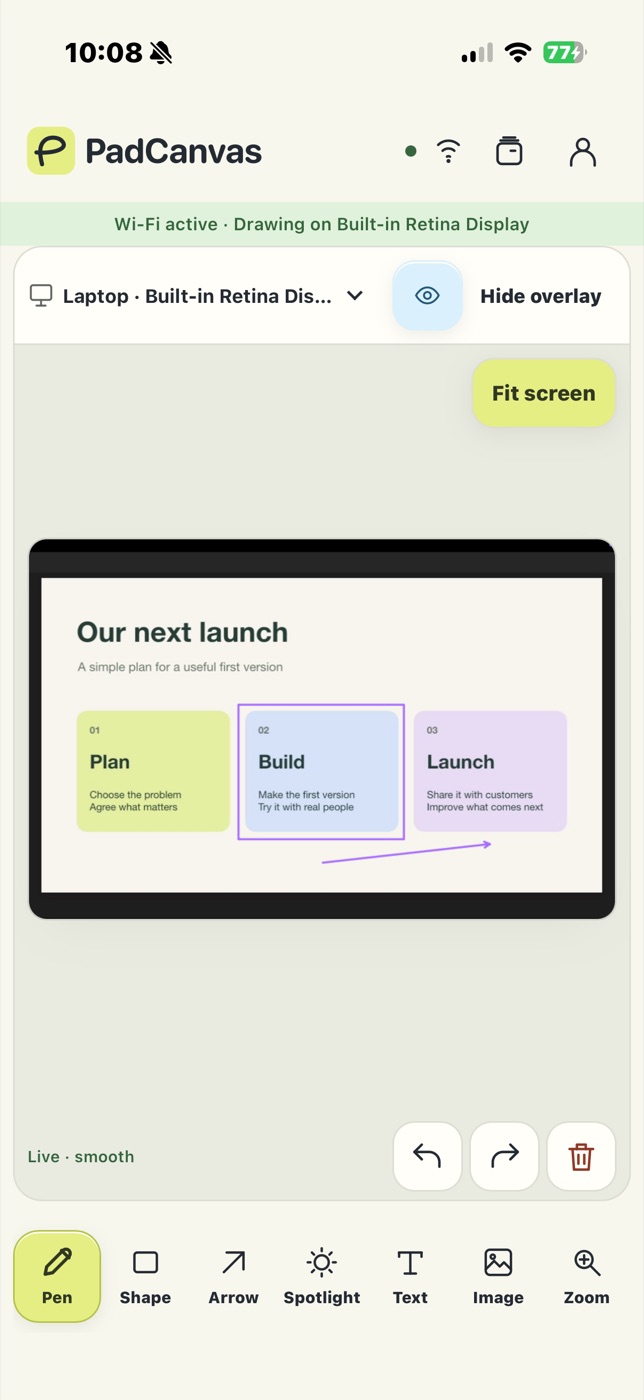
Google Slides has a built-in pen in slideshow mode, but you draw with the computer’s mouse or trackpad. With PadCanvas, your iPhone or iPad becomes both the pen and the remote. Draw over the slideshow with your finger or Apple Pencil, and use Previous and Next on the same device. Turn on Slide remote in the Mac app, start the slideshow in Google Chrome and allow PadCanvas in macOS Accessibility settings.
Set it up
- Connect your iPhone or iPad to PadCanvas on your Mac (setup guide).
- In the Mac app, turn on Slide remote.
- Open the presentation in Google Chrome and start the slideshow. Keep the slideshow window active.
- Allow PadCanvas in System Settings → Privacy & Security → Accessibility when macOS asks.
- Previous and Next appear on your device once a supported slideshow is ready. Draw over any slide with the pen, arrows or spotlight.
Google Slides’ pen or PadCanvas?
| Google Slides pen | PadCanvas | |
|---|---|---|
| Where you draw | On the computer, with mouse or trackpad | On your iPhone or iPad, with finger or Apple Pencil |
| Change slides from the same device | No | Yes: Previous and Next on the device |
| Tools | Pen, eraser, laser pointer | Pen, shapes, arrows, text, images, spotlight, zoom |
| Works outside Slides | No | Yes: any app on the selected display |
| Cost | Included with Google Slides | £4.99 a year after a 7-day trial |
If you only need a quick scribble at the laptop, the built-in pen is great. PadCanvas is for presenting on your feet, with the pen in your hand.
Tips for a smooth talk
- Present in Chrome. Slide remote works with a recognised Google Slides slideshow in Chrome; the editor and other tabs won’t respond.
- Using Google Meet? Share your entire screen so people see your marks (video calls guide).
- Use Clear between slides, or turn on drawing timeout so marks fade on their own.
- On a slow connection, PadCanvas may drop a delayed tap rather than skip a slide later. Wait a moment and tap again.
Questions
Can I use my phone as a Google Slides clicker?
Yes. With Slide remote turned on in PadCanvas and the slideshow open in Chrome, Previous and Next appear on your connected iPhone or iPad.
Does it work with Keynote and PowerPoint too?
Drawing works over any app on the selected display, including Keynote and PowerPoint. Slide remote currently supports Google Slides in Chrome. Keynote also has its own remote with drawing.
Why don’t the slide buttons work?
Check that Slide remote is on, the slideshow in Chrome is the active window (not the editor), and PadCanvas is allowed in Accessibility settings.
Try it on your own screen
Seven days free, then £4.99 a year. The iPhone & iPad companion is included.
Requires an Apple-silicon Mac with macOS 14 or later, and an iPhone or iPad with iOS or iPadOS 16 or later. Apple Pencil works on compatible iPads.